
You hit play, the credits roll, and you realize the colors look washed out or the dialogue is muddy. It’s frustrating, right? You paid for a premium subscription, yet the movie doesn’t feel premium. The difference often comes down to one thing: streaming quality. It isn't just about whether the picture is sharp; it dictates how immersed you are in the story, how much detail you catch, and even how your brain processes the emotional beats of a film.
When we talk about streaming quality, we aren't just talking about file size. We are looking at a complex mix of video codecs, bitrate levels, audio compression, and color grading standards. Each element plays a specific role in delivering the director's vision to your screen. If one part of that chain breaks, the whole experience suffers. Understanding these components helps you troubleshoot issues before they ruin a good night in.
The Visual Foundation: Resolution and Bitrate
Resolution is the first metric most people check. Standard Definition (SD) offers 480 lines of vertical pixels, while High Definition (HD) bumps that up to 1080 lines. Ultra High Definition (UHD), commonly known as 4K, pushes this to 2160 lines. But pixel count alone doesn't tell the whole story. A 4K image with low data density looks soft and blurry compared to a 1080p image with high data density.
This is where bitrate enters the conversation. Bitrate measures how much data flows per second. Think of it as the amount of ink used to paint the picture. A low-bitrate stream uses less "ink," resulting in blocky artifacts during fast motion scenes or grainy textures in dark areas. A high-bitrate stream preserves those details, keeping skin tones smooth and explosions crisp. Most major platforms use adaptive bitrate technology, which automatically adjusts this flow based on your internet speed. While convenient, this means your quality can fluctuate mid-scene if your connection wobbles.
| Resolution Type | Pixel Count | Typical Video Bitrate | Best Use Case |
|---|---|---|---|
| Standard Definition (SD) | 720x480 | 1-3 Mbps | Mobile devices, slow connections |
| High Definition (HD) | 1920x1080 | 5-10 Mbps | Standard laptops, tablets |
| Ultra HD (4K) | 3840x2160 | 15-25 Mbps | Large TVs, dedicated media rooms |
Beyond Pixels: Color Depth and HDR
Modern films are shot with dynamic range that goes far beyond what standard monitors can display. This is where High Dynamic Range (HDR) becomes critical. Traditional SDR (Standard Dynamic Range) limits brightness to around 100 nits. HDR10 extends this to 1,000 nits, while Dolby Vision pushes it even higher with scene-by-scene metadata. This allows for deeper blacks and brighter highlights simultaneously.
If you watch an HDR film on an SDR TV, the image doesn't just look darker; it loses contrast. Shadows become crushed into blackness, and bright skies turn white. To fully appreciate this, your display needs to support wide color gamuts like Rec. 709 or DCI-P3. Without proper color mapping, reds might look orange, or blues might appear dull. The goal is accurate reproduction, not just vividness. When a filmmaker grades a scene with subtle teal shadows, you want to see that nuance, not a flat gray area.

The Audio Dimension: Compression and Spatial Sound
We often ignore audio until it fails us. Streaming services typically compress audio using AAC or Dolby Digital. While efficient, compression removes high-frequency details and reduces dynamic range. In a quiet thriller, a faint whisper might get lost under background noise due to aggressive compression.
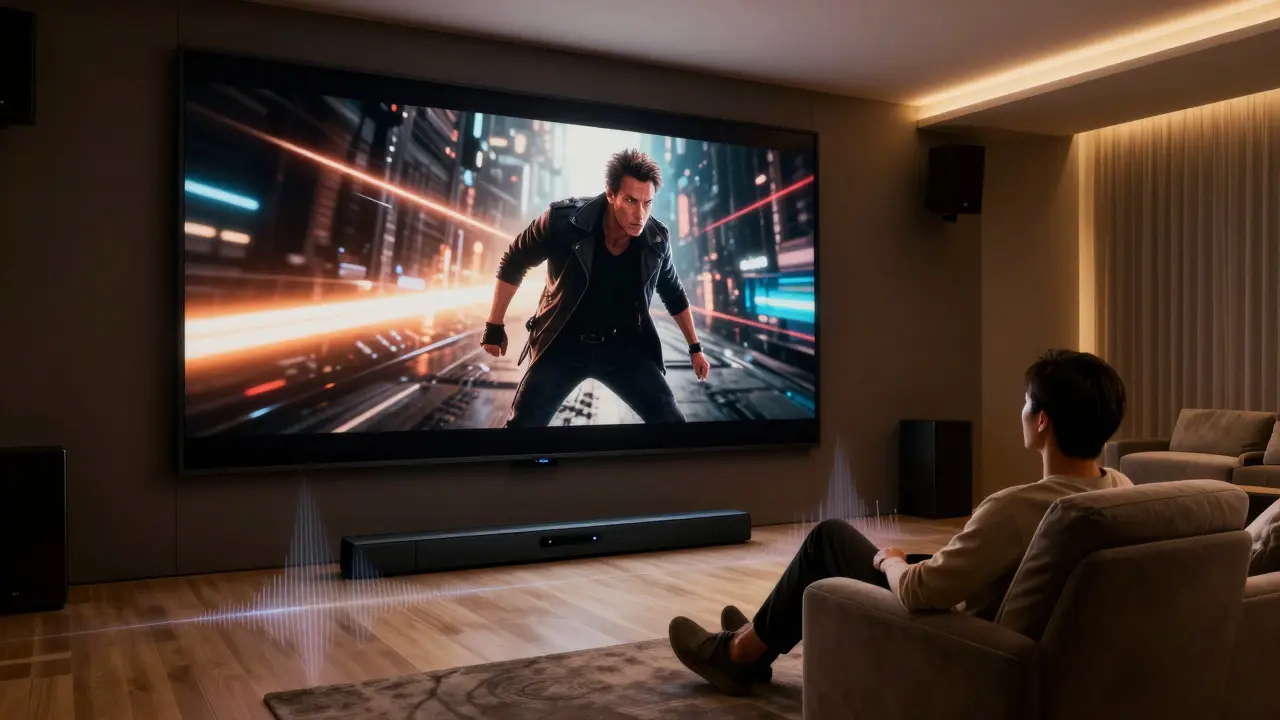
For a true cinematic experience, lossless or near-lossless formats matter. Dolby Atmos creates a three-dimensional soundscape by placing audio objects in specific coordinates rather than fixed channels. Imagine rain falling from above you or a car passing from left to right overhead. On a stereo system, these effects are flattened. On an Atmos-compatible setup, they surround you. However, this requires both the source content to be mastered in Atmos and your playback device to decode it correctly. Many users have soundbars but don't enable the correct input mode, leaving them stuck with standard 5.1 channel audio.
Internet Speed and Network Stability
Your hardware is only as good as your connection. A 4K stream requires a sustained download speed of at least 25 Mbps. But speed isn't the only factor; latency and packet loss matter too. If your Wi-Fi signal bounces off walls or interferes with other devices, the buffer fills up slowly. This leads to buffering pauses or automatic downscaling to HD or SD.
Ethernet connections provide the most stable path for streaming. If you must use Wi-Fi, place your router closer to your TV or use a mesh network system to reduce dead zones. Also, consider what else is happening on your network. A family member downloading a large game update can steal bandwidth from your movie stream, causing quality drops exactly when the action picks up. Monitoring your network usage can help identify these conflicts before they disrupt your viewing.
Device Capabilities and Processing Power
The final link in the chain is your playback device. Not all smart TVs are created equal. Some budget models struggle to decode HEVC (H.265) or VP9 codecs efficiently, leading to stuttering or overheating. Dedicated streaming sticks like Roku, Apple TV, or Amazon Fire Stick often handle decoding better than built-in TV processors because they are optimized specifically for media tasks.
Also, check your TV's refresh rate. A 60Hz panel handles standard film content fine, but if you are watching sports or action sequences with fast panning, a 120Hz panel reduces motion blur. Motion smoothing features, often called "soap opera effect," can make movies look unnatural by interpolating frames. Turning this off usually restores the intended cinematic look. Your device settings directly influence how the encoded stream is rendered on screen.
Optimizing Your Setup for Best Results
To get the most out of your streaming service, start with a simple audit. First, test your internet speed using a reliable tool. Ensure you are hitting the minimum thresholds for your desired resolution. Second, connect your device via Ethernet if possible. Third, check your TV settings to ensure HDR and High Bitrate modes are enabled. Finally, verify that your audio output is set to pass-through or bitstream if you have an external receiver.
- Run a speed test during peak hours to account for congestion.
- Update your streaming app and TV firmware regularly.
- Disable motion smoothing on your TV for film content.
- Ensure your HDMI cable supports eARC for high-quality audio return.
- Keep your router away from microwaves and cordless phones to reduce interference.






Comments(6)