You hit play on a movie that looks harmless enough. The trailer is cute. The box art features bright colors and smiling characters. But ten minutes in, the plot twists into something dark, or the language gets sharp, or the themes get heavy. This happens to every parent navigating the modern living room. Streaming services have changed how we watch, but they haven’t always made it easier to protect what our children see.
In 2026, the landscape of streaming parental controls is more complex than ever. We aren't just dealing with cable boxes anymore. We are managing accounts on Netflix, Disney+, Max, Amazon Prime Video, Apple TV+, and YouTube. Each platform has its own rules, its own rating systems, and its own hidden corners where inappropriate content can slip through. Understanding these tools isn't just about technology; it's about setting boundaries in a digital home.
Understanding the Rating Systems
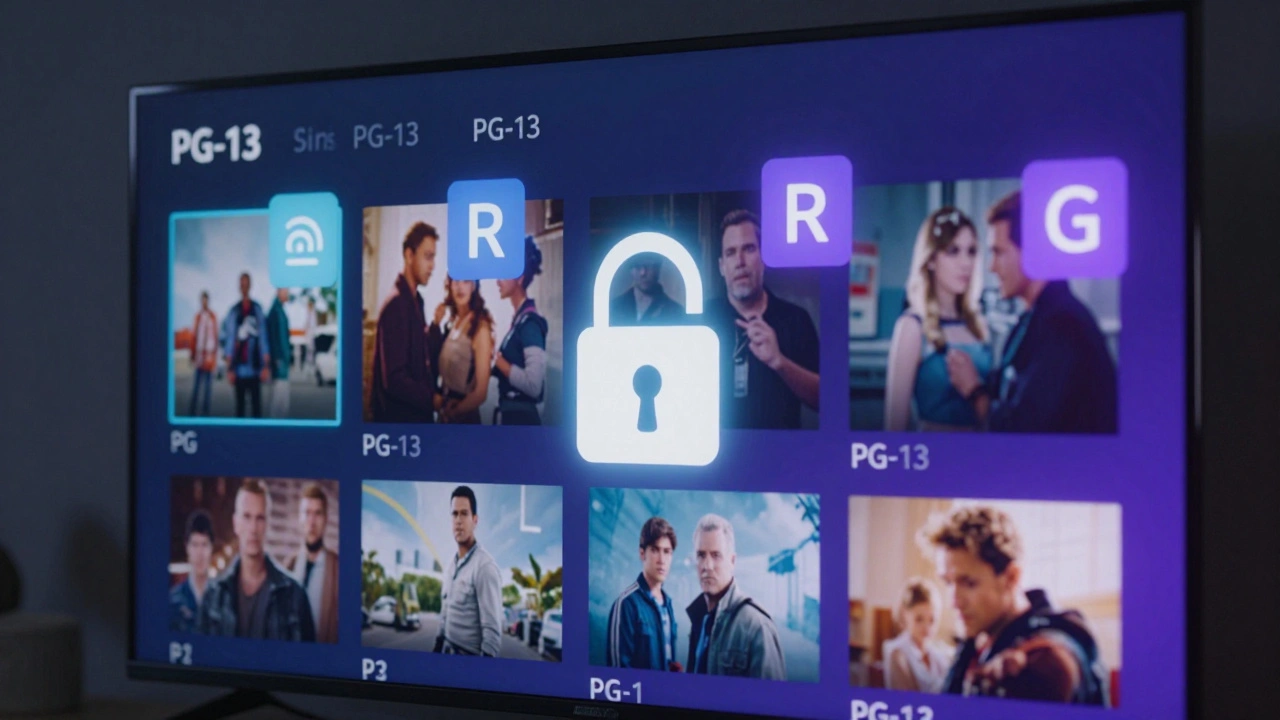
Before you touch a single setting on your tablet or smart TV, you need to understand the language of ratings. In the United States, the Motion Picture Association (MPA) sets the standard, but streaming services often interpret these guidelines differently than theaters did. The core ratings remain familiar: G, PG, PG-13, R, and NC-17. However, the context matters.
A PG-13 rating in a theater means parents are strongly cautioned because some material may be inappropriate for children under 13. On streaming, this label stays the same, but the enforcement varies. Some platforms allow anyone with an account to watch PG-13 content by default. Others require a PIN. You cannot rely on the letter grade alone. You must look at the specific descriptors. Is the PG-13 due to violence? Sexual content? Language? Or drug use? These descriptors are your first line of defense.
| Rating | Meaning | Parental Action |
|---|---|---|
| G | General Audiences | All ages admitted. No restrictions needed. |
| PG | Parental Guidance Suggested | Some material may not be suitable for young children. Check descriptors. |
| PG-13 | Parents Strongly Cautioned | Some material may be inappropriate for children under 13. Use PIN locks. |
| R | Restricted | Under 17 requires accompanying parent or adult guardian. Strict PIN lock required. |
| NC-17 | Adults Only | No one 17 and under admitted. Block entirely from family profiles. |
Remember that international content might carry different labels. A film rated '12A' in the UK or 'K-14' in South Korea might feel similar to a PG-13, but the nuances differ. Always check the local rating if you are watching foreign-language films for educational purposes or cultural exposure.
Setting Up Profiles Correctly
The biggest mistake parents make is sharing a single profile among siblings. When everyone logs into "Dad's Account," the algorithm gets confused. It starts recommending action movies to your seven-year-old because Dad watched them last night. To fix this, you need separate profiles for every user, including each child.
Most major platforms like Netflix, Disney+, and Max allow you to create kid-specific profiles. These profiles do two things. First, they limit the library to content deemed appropriate for that age group. Second, they change the interface. Icons become larger, text becomes simpler, and mature thumbnails are hidden. For younger children, this visual shift reduces accidental clicks on scary images.
Create a profile for each child based on their actual age, not their maturity level. If your ten-year-old wants to watch a show rated for teens, discuss it with them first. Do not simply upgrade their profile settings without a conversation. This teaches media literacy. It shows them that access to certain content is a privilege earned through understanding, not just a technical toggle.
Platform-Specific Controls: The Big Five
Each streaming giant handles security differently. Here is how to lock down the most common services in 2026.
Netflix
Netflix offers a robust "Kids" profile type. Within this profile, you can set a maturity level ranging from "Little Kids" to "Teens." The "Little Kids" setting restricts content to shows rated G and PG, removing any titles with intense scenes even if they are technically PG. For older kids, you can enable "Maturity Restrictions" on individual profiles. This requires a four-digit PIN to unlock higher-rated content. Set this PIN immediately after creating the account. Do not use obvious numbers like 1234 or your birth year.
Disney+
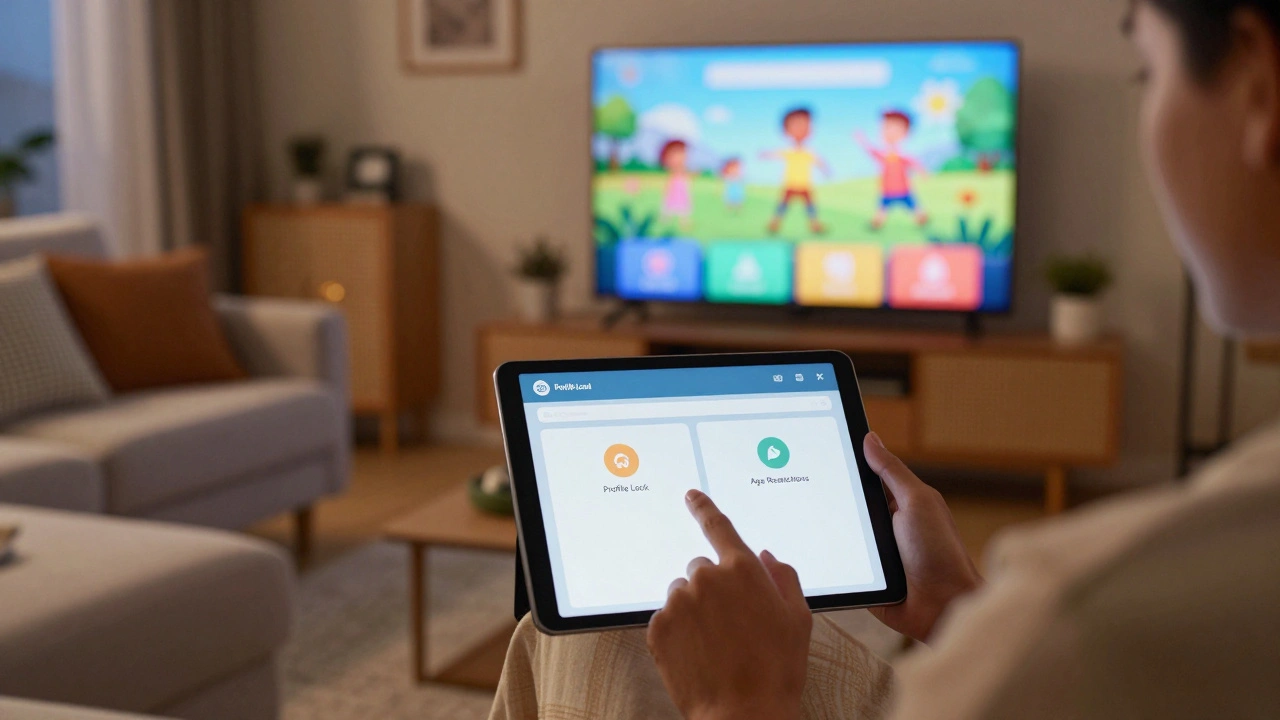
Disney+ is generally safer out of the box, but it still carries PG-13 and R-rated content from Marvel and Star Wars franchises. Use the "Profile Lock" feature. This adds a PIN requirement whenever someone tries to switch profiles. This prevents your teenager from logging into your main profile to watch unrestricted content. Additionally, check the "Watchlist" regularly. Algorithms sometimes suggest darker fan theories or behind-the-scenes documentaries that delve into mature topics.
Max (formerly HBO Max)
Max houses both family-friendly animation and hard-R dramas. The key here is the "Playback Pin." Go to Settings > Account > Playback Pin. You can set this pin to block all content above a certain rating. Crucially, you can also block specific titles. If there is one movie you don't want accessible, add it to the block list. Max also allows you to hide mature thumbnails, which helps prevent accidental exposure when browsing.
Amazon Prime Video
Amazon’s interface is cluttered, which makes controls harder to find. Look for "Parental Controls" in the Account section. You can set a PIN to restrict purchases and rentals. More importantly, you can set viewing restrictions by rating. Note that Amazon Prime Video includes third-party content from studios like Lionsgate and Sony. These external titles sometimes have inconsistent metadata. Always double-check the rating of rented content before pressing play.
Apple TV+
Apple integrates its streaming service with the broader iOS ecosystem. If you use Family Sharing, you can manage screen time and content restrictions directly from your iPhone. The "Content & Privacy Restrictions" menu lets you block explicit content across all devices linked to your family group. This is powerful because it covers not just Apple TV+, but also iTunes rentals and purchased movies.
Beyond the Stream: YouTube and Live TV
YouTube remains the wild west of streaming. Even with YouTube Kids, the comment sections and recommended videos can drift into inappropriate territory. Enable "Restricted Mode" on your browser and app. While not foolproof, it filters out potentially mature content. For younger children, stick to YouTube Kids and curate the allowed channels manually. Do not rely on the algorithm to keep them safe.
If you subscribe to live TV streaming services like YouTube TV, Hulu + Live TV, or Sling TV, you are essentially getting cable. These services offer V-chip style blocking. You can block channels entirely or block content based on ratings. Remember that live news and sports broadcasts can contain unexpected mature moments. Blocking entire channels might be necessary during sensitive times.
Talking to Your Kids About Content
Technology fails. Passwords get guessed. Screens get left unlocked. The most effective tool you have is communication. Talk to your children about why certain content is restricted. Explain that violence, sexual content, and strong language are not just "bad words" or "scary pictures," but representations of real-world issues that require emotional maturity to process.
Co-viewing is essential. Watch new releases with your kids initially. Discuss the themes. Ask them what they thought about a character's choice. This builds critical thinking skills. When they eventually watch alone, they will have a framework for evaluating what they see. They will learn to question media rather than just consume it passively.
Regular Maintenance and Updates
Parental controls are not set-and-forget. As your children grow, their needs change. A control that worked for a six-year-old will frustrate a twelve-year-old. Review your settings every six months. Update PINs annually. Check for new apps installed on shared devices. Streaming services update their interfaces frequently, which can reset some preferences. Stay vigilant.
Also, be aware of cross-platform risks. A child might watch a movie on Netflix, then search for related memes or fan edits on TikTok or Instagram. These secondary platforms often lack the same robust rating systems. Extend your digital safety practices beyond just the streaming apps. Teach them to recognize clickbait and misleading thumbnails.
Quick Checklist for Digital Safety
- Create separate profiles for every household member.
- Set a unique, non-obvious PIN for each device and account.
- Enable playback pins for mature content on all streaming apps.
- Hide mature thumbnails where possible.
- Review watchlists and search history monthly.
- Discuss content ratings and meanings with your children.
- Update parental controls as children age.
- Use Family Sharing features on iOS/Android for centralized control.
Navigating streaming parental controls takes effort, but it pays off. It creates a safer environment for your family while allowing your children to explore the rich world of storytelling. By combining technical safeguards with open dialogue, you empower them to become responsible digital citizens. The goal isn't to shield them from everything, but to guide them through it wisely.
How do I reset my parental control PIN on Netflix?
Go to Account > Profile & Parental Controls > Select the profile > Change PIN. If you forgot the old PIN, you can reset it via email verification linked to your account.
Are streaming ratings the same as movie theater ratings?
Generally yes, but streaming services apply them inconsistently. A PG-13 on Netflix might be accessible without a PIN, whereas in a theater, ID would be checked. Always verify platform-specific settings.
Can my kids bypass parental controls on Smart TVs?
Yes, if they know the PIN or if multiple profiles share one login. Ensure each child has their own locked profile and never share your master PIN. Restarting the TV does not reset these locks.
What is the best way to monitor YouTube usage?
Use YouTube Kids for younger children and enable Restricted Mode for older ones. Regularly review watch history and consider using screen time limits built into iOS or Android parental controls.
Do parental controls work across all devices?
No, settings are usually device-specific. You must configure controls separately on your phone, tablet, smart TV, and gaming console. Using Family Sharing on Apple or Google accounts helps sync some restrictions.