Ever hit play on a new movie only to realize the dialogue is muffled by heavy background music? Or maybe you’re watching in a noisy room and can’t hear the subtle plot twists? For millions of viewers, this isn't just an inconvenience-it's a barrier. Streaming accessibility has become a critical feature set for modern platforms, yet many users still struggle to find the right tools for their specific needs. Whether you are hard of hearing, visually impaired, or simply want a better viewing experience in a chaotic household, understanding the difference between subtitles, captions, and audio description is the first step to unlocking your full potential as a viewer.
The Core Difference: Subtitles vs. Captions
Confusing these two terms is the most common mistake people make when setting up their streaming profiles. While they look similar on screen, they serve very different purposes. Subtitles are designed primarily for language translation. If you are watching a French film with English text at the bottom of the screen, you are using subtitles. They typically include only the spoken dialogue and rarely indicate who is speaking if it’s not obvious from the context. The goal here is linguistic clarity, not auditory reinforcement.
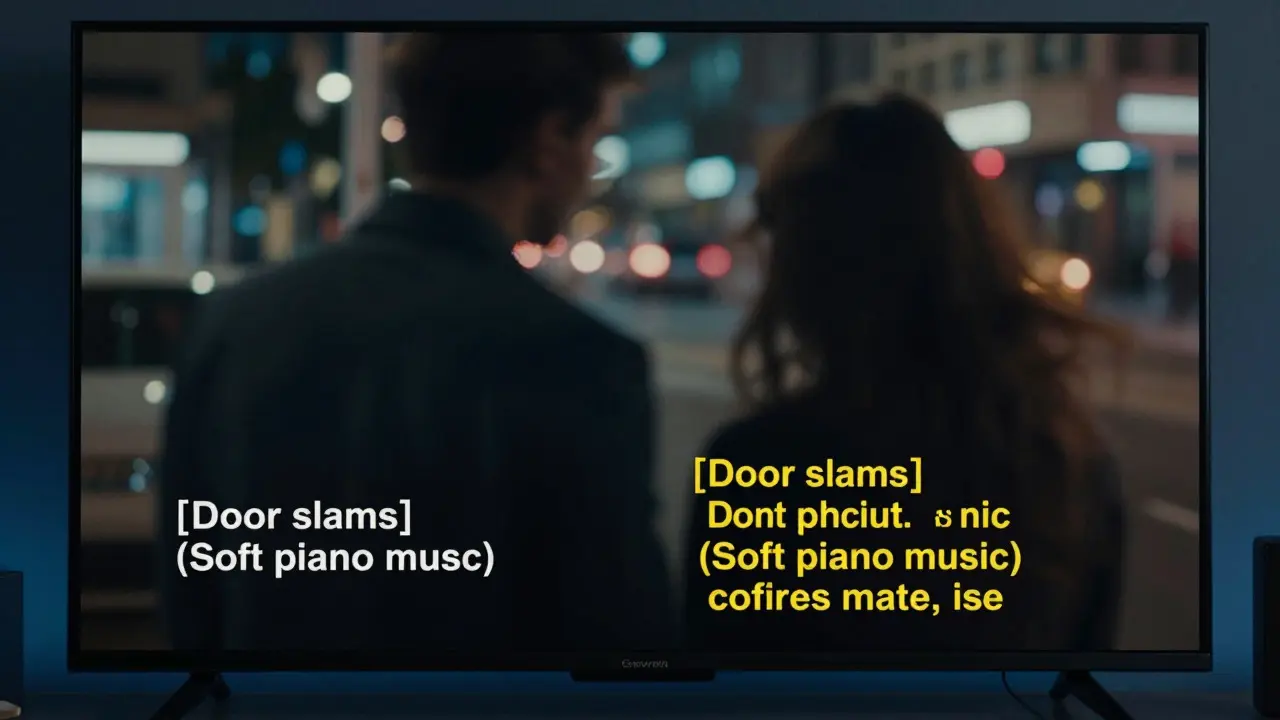
Captions, on the other hand, are built for accessibility. They provide a complete textual representation of the audio track. This means they include not just the words being said, but also sound effects, music cues, and speaker identification. For example, a caption might read "[Door slams]" or "(Soft piano music)" alongside the dialogue. If you are hard of hearing, captions are your best friend because they ensure you don’t miss non-verbal audio cues that drive the narrative. Always check your platform’s settings to see if you can toggle between "Subtitles" (for translation) and "Captions" (for accessibility), as some services use the terms interchangeably in their menus, which can be frustratingly misleading.
Audio Description: Hearing What You Can’t See
For viewers who are blind or have low vision, visual information is often inaccessible without assistance. This is where audio description comes in. It is a secondary audio track that provides narration during natural pauses in the main dialogue. A narrator describes key visual elements, such as character actions, facial expressions, scene changes, and on-screen text. Think of it as a voiceover that fills in the gaps of what you aren't seeing. It doesn't replace the original audio; it weaves into the existing soundscape so you can follow the story while listening to the actors' performances.
Not every movie has an audio description track, especially in independent releases or older catalog titles. However, major studios like Disney, Warner Bros., and Netflix have made significant strides in including this feature for their flagship releases. When browsing a title, look for the "Audio Description" icon or label in the details section. If it’s missing, you might need to rely on a companion app or a separate service, though native support within the streaming app is far more seamless.
How to Enable These Features on Major Platforms
Each streaming service handles accessibility settings differently, but the general logic remains consistent. Here is how you can usually find these options on the big players:
- Netflix: Click the speech bubble icon on the video player. From there, you can select "Audio & Subtitles." You’ll see separate tabs for audio tracks (including Audio Description) and subtitle/caption languages. You can also adjust the size and color of the text for better readability.
- Amazon Prime Video: Look for the gear icon or the speech bubble depending on your device. Navigate to "Audio & Subtitles." Amazon allows you to customize caption appearance extensively, including font size, background opacity, and positioning.
- Disney+: Tap the info button or the gear icon. Select "Audio & Subtitles." Disney+ is known for having robust audio description options for its Marvel and Star Wars content, making it a strong choice for fans of those franchises who need visual aids.
- Hulu: Use the CC button or the settings menu. Hulu integrates well with Apple TV and Roku devices, allowing you to sync your system-wide caption preferences directly to the app.
A pro tip: If you use multiple devices, consider enabling system-level accessibility features first. On iOS, Android, Apple TV, and Roku, you can set default caption sizes and styles. Most streaming apps will respect these system settings, saving you from having to tweak them manually for every single movie.
Comparison of Accessibility Features
| Feature | Primary Purpose | Includes Sound Effects? | Best For |
|---|---|---|---|
| Subtitles | Language Translation | No | Non-native speakers, quiet rooms |
| Closed Captions | Accessibility for Hard of Hearing | Yes | Hard of hearing, noisy environments |
| Open Captions | Broadcast Standard | Yes | Older TVs, broadcast streams |
| Audio Description | Accessibility for Low Vision/Blind | N/A (Narrative) | Blind or low-vision viewers |
Troubleshooting Common Issues
Even with the best intentions, technology can glitch. If your captions aren't showing up, try these quick fixes before assuming the file is broken. First, restart the app. Simple as it sounds, clearing the cache often resolves display bugs. Second, check your internet speed. High-quality caption files require a stable connection; if your bandwidth is fluctuating, the stream might drop the metadata layer. Third, verify that you haven't accidentally turned off the feature in your device’s global settings. On smart TVs, for instance, disabling "Closed Captions" in the TV’s main menu will override the streaming app’s internal settings. Finally, update your app. Developers frequently release patches to fix accessibility bugs, so running the latest version ensures you have the most reliable experience.
Why It Matters Beyond Disability
Accessibility features aren't just for people with diagnosed disabilities. Studies show that nearly half of all TV viewers watch with the volume turned down or muted, often due to social pressure or noise. Captions help everyone understand dialogue in these scenarios. Additionally, learning a new language becomes much easier when you can read along with the audio. By embracing these tools, you’re not just helping yourself-you’re normalizing inclusive design in the entertainment industry. As streaming continues to dominate home entertainment, demanding better accessibility standards ensures that no one gets left out of the conversation, literally.