You just wrapped principal photography. You have 40 hours of footage, a hard drive that’s barely half full, and a bank account that’s screaming at you to stop spending. The script is done, the actors are paid (mostly in pizza), and now comes the part where the movie actually gets made: editing.
For big studios, editing is about managing massive data pipelines. For indie filmmakers, it’s about survival. It’s about making sure your laptop doesn’t melt while you’re trying to cut a scene on a train, or figuring out how to get a professional look without hiring a colorist who charges by the minute. If you’re working with a shoestring budget, your workflow isn’t just a preference-it’s the difference between finishing your film and drowning in media files.
The Pre-Edit Reality Check
Before you even open your Non-Linear Editor (NLE), you need to admit something: your computer probably isn’t enough. This isn’t an insult; it’s physics. Modern cameras shoot high-bitrate codecs like ProRes 422 HQ or Blackmagic RAW. These files are heavy. They eat RAM for breakfast and choke your CPU before lunch. If you try to edit raw footage directly on a mid-range laptop, you’ll spend more time waiting for the timeline to render than actually cutting scenes. The solution? Proxy Workflow. A proxy is a lower-resolution, easier-to-edit copy of your original video file. Think of it as a stunt double for your footage. You do all the rough cutting, pacing, and structure work using these lightweight proxies. When you’re ready to export, the software swaps them back for the high-quality originals.
Most modern NLEs handle this automatically. In Adobe Premiere Pro, you right-click your bin and select "Proxy > Create Proxies." In DaVinci Resolve, it’s built into the project settings under "Media Storage." But here’s the catch: don’t make your proxies too small. A common mistake is creating 1/4 resolution H.264 proxies. While they load fast, they can introduce artifacts that make color grading later a nightmare. Stick to DNxHR LB or ProRes Proxy if your storage allows, or use the native proxy formats provided by your software, which are optimized for decoding speed.
Choosing Your Weapon: The NLE Dilemma
Which editor should you buy? Or rather, which one should you learn? This is the first major fork in the road. There are three main players, and each has a specific vibe for low-budget creators.
| Software | Cost | Best For | Learning Curve | Key Feature |
|---|---|---|---|---|
| DaVinci Resolve | Free / $295 Studio | All-in-one post-production | Steep | Industry-leading Color Grading |
| Adobe Premiere Pro | $22.99/mo | Cross-app workflows (After Effects) | Moderate | Dynamic Link integration |
| Final Cut Pro | $299 one-time | Mac users needing speed | Gentle | Magnetic Timeline |
If you’re strictly on a zero-dollar budget, DaVinci Resolve is the undisputed king. Its free version includes 95% of the features most indies need, including professional audio tools (Fairlight) and visual effects (Fusion). The downside? It’s resource-heavy. You need a decent GPU. If you have an older MacBook Air, Resolve might stutter.
Premiere Pro is the safe bet if you already know Photoshop or Illustrator. The interface is familiar, and the subscription model keeps upfront costs low. However, paying monthly adds up over a two-year production cycle. Final Cut Pro is fantastic if you’re deep in the Apple ecosystem. It’s incredibly fast on M-series chips, but switching away from it later can be painful due to its proprietary library structure.
Organization Is Not Optional
Here’s a horror story: You finish your edit, lock the picture, and send it to a sound designer. Two weeks later, you realize you missed a line of dialogue in Scene 42. You go back to your project, and your bins are named "New Bin," "New Bin (2)," and "Misc." Good luck finding that clip.
Low-budget productions often skip organization because there’s no producer yelling at you. Don’t make that mistake. Establish a naming convention before you import a single frame. Use a folder structure that mirrors your script:
- 01_Audio: Dialogue, Music, SFX
- 02_Video: Reel_01, Reel_02, etc.
- 03_Graphics: Titles, Lower Thirds
- 04_Exports: Rough_Cuts, Locked_Picture
Inside your NLE, create bins for every location or character arc. Tagging clips with keywords is also vital. In Premiere, you can add metadata fields like "Scene," "Take," and "Notes." If you used a clapperboard, sync audio via timecode. If you didn’t (and let’s be honest, you probably forgot the slate half the time), use waveform synchronization. It’s not perfect, but it beats syncing by eye. Always check the sync manually afterward-waveforms drift.
The Assembly Edit: Killing Your Darlings
Your first edit will be terrible. Accept this. The assembly cut is just about getting everything in order. It’s long, boring, and repetitive. Don’t worry about music or transitions yet. Just find the heart of the scene.
A common trap for beginners is being too precious with their shots. You spent three days lighting that sunset shot. It looks beautiful. But does it serve the story? If it slows down the pace, cut it. No matter how pretty it is. This is where the J-Cut and L-Cut techniques come in handy. Instead of hard cuts where audio and video change simultaneously, overlap them. Let the audience hear the next scene before they see it (J-cut) or keep hearing the previous scene after the visual changes (L-cut). This smooths out the rhythm and makes dialogue feel natural, not robotic.
Watch your cut twice: once with the sound off, and once with the sound muted. Watching without sound helps you spot visual inconsistencies and pacing issues. Listening without visuals helps you judge if the dialogue flows naturally. If a scene drags when you close your eyes, it needs tightening.
Color Grading Without Breaking the Bank
Raw footage looks flat. That’s normal. It preserves dynamic range so you can fix exposure mistakes later. But leaving it flat makes your film look like a home video. You need to grade it.
Hiring a colorist costs money. Doing it yourself saves cash but requires skill. Start with a technical correction. Fix white balance. Ensure skin tones look natural. Then, apply a creative look. This is where LUTs (Look Up Tables) save the day. A LUT is essentially a preset filter that maps colors from one space to another. Many camera manufacturers provide free technical LUTs to restore contrast and saturation to log footage.
But don’t rely solely on LUTs. They are starting points, not final grades. Adjust the lift, gamma, and gain controls to fine-tune the mood. Warm tones for nostalgia, cool blues for tension. Keep it subtle. Over-saturated, teal-and-orange nightmares are a hallmark of amateur editing. Remember, less is more. If you can’t tell what the dominant emotion of the scene is based on the color, you’ve gone too far.
Sound Design: The Invisible Art
Bad sound ruins good pictures. Good sound saves bad pictures. Yet, sound is often the last thing addressed in low-budget edits. Don’t leave it until the night before delivery.
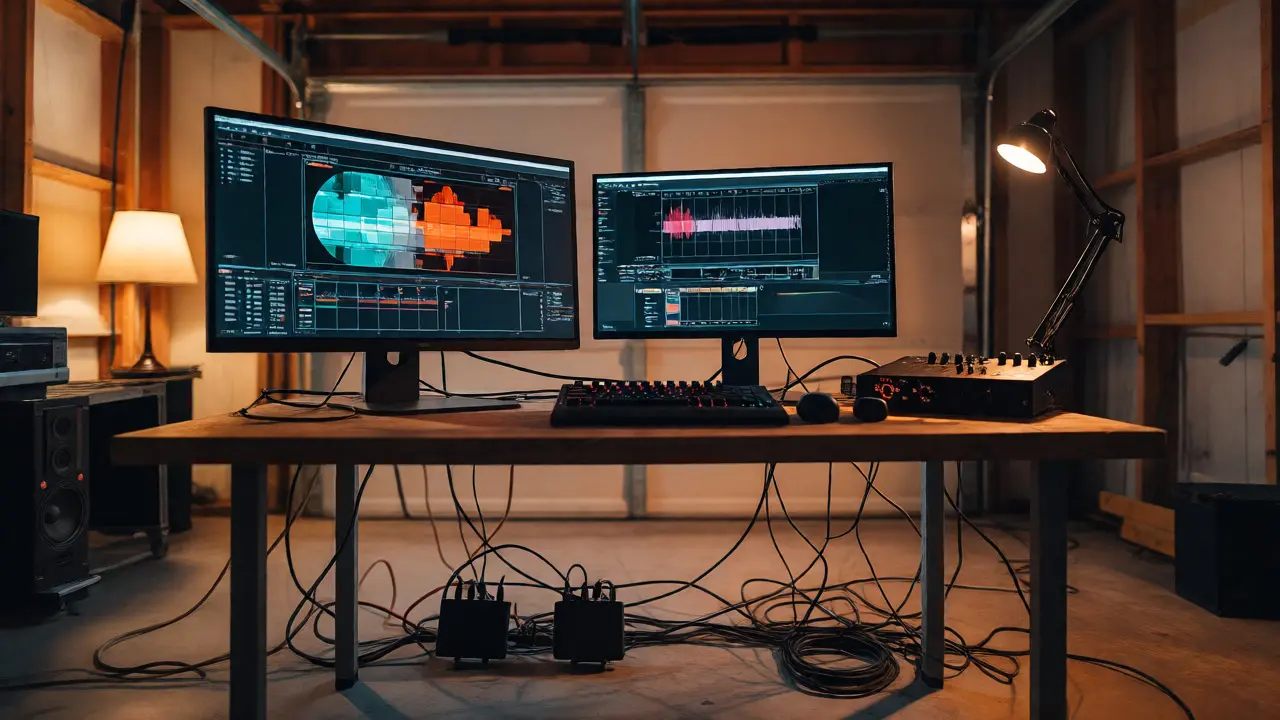
Start with clean dialogue. Use noise reduction tools sparingly. Aggressive noise removal makes voices sound underwater. Instead, use EQ to cut rumbling lows below 80Hz and boost presence around 3kHz for clarity. Then, layer in ambient sounds. Room tone is crucial. If you cut between two angles of the same conversation, the background noise must match perfectly, or the cut will jump. Add foley effects-the rustle of clothes, footsteps, door creaks-to ground the characters in physical space.
Music selection is tricky. Copyright strikes can kill your distribution deals. Avoid popular songs unless you have the budget to license them. Look for royalty-free libraries like Epidemic Sound or Artlist, which offer flat-rate subscriptions. Alternatively, commission a local composer. Often, passionate musicians will work for credit or a modest fee, especially if you provide them with a clear brief and reference tracks.
Exporting and Delivery
You’ve locked the picture. Now, export. Again, format matters. For festival submissions, ProRes 422 HQ is the standard. It’s large but maintains quality. For online platforms like Vimeo or YouTube, H.264 is sufficient, but encode it at a high bitrate (at least 20Mbps for 1080p, 50Mbps for 4K).
Always watch your exported file on a different device. Your editing monitor might be calibrated, but your phone screen isn’t. Check for banding in gradients, audio sync drift, and black level crushes. Once it passes the phone test, upload it. Keep backups. Three copies, two different types of media, one offsite. Hard drives fail. Cloud storage glitches. Don’t lose your film because you got lazy with backups.
Do I really need a proxy workflow for my short film?
Yes, if your footage is higher than 1080p or uses complex codecs like RAW or HEVC. Proxies significantly reduce lag during scrubbing and playback, allowing you to focus on creativity rather than waiting for renders. Even for 1080p projects, if you have multiple layers of effects, proxies help maintain real-time performance.
Is DaVinci Resolve better than Premiere Pro for beginners?
It depends on your hardware and goals. Resolve is harder to learn initially due to its node-based approach and complex interface, but it offers superior color grading and audio tools for free. Premiere Pro has a gentler learning curve and integrates seamlessly with other Adobe apps. If you plan to do motion graphics, Premiere might be easier to start with. If you prioritize color, Resolve is worth the steep climb.
How much storage do I need for a low-budget feature?
A general rule of thumb is 1TB of fast SSD storage for every hour of 4K RAW footage. However, you also need backup drives. Aim for at least 4TB total capacity: 1TB for active editing, 1TB for archived originals, and 2TB for backups. Never edit directly from a mechanical HDD; use an external SSD like a Samsung T7 or SanDisk Extreme for your active project files.
Can I edit 4K footage on a laptop?
You can, but it’s painful without proxies. A laptop with at least 16GB of RAM and a dedicated GPU (like NVIDIA RTX series or Apple M-series chip) can handle 4K proxies smoothly. Attempting to edit native 4K ProRes or RAW files on a consumer laptop usually results in dropped frames and overheating. Always use a cooling pad and ensure your power adapter is plugged in.
What is the best aspect ratio for indie films?
There is no single "best" ratio. 16:9 is standard for TV and web. 2.39:1 (Cinemascope) is great for epic landscapes and creates a cinematic feel but crops vertical information. 4:3 is trendy for intimate character dramas. Choose based on your story’s emotional needs and how you composed your shots on set. Consistency is key; don’t switch ratios mid-film unless intentional.