You have probably seen it a thousand times without noticing. A news anchor stands in front of a map that isn't there. An action hero dangles from a cliff edge that was actually a blue tarp in a parking lot. This magic is called compositing, and its most common tool is the chroma key. It sounds simple: shoot against green, replace green with background. But if you have ever tried it, you know the edges look like jagged teeth, or your actor looks like they are floating in space. The difference between an amateur clip and a Hollywood shot isn't just expensive software; it's understanding light, color, and math.
Before we open any editing timeline, let's get one thing straight about the gear. You don't need a $500 camera to start, but you do need a clean signal. Most consumer cameras compress video heavily. They throw away data to save space. When you try to pull a green screen out of a highly compressed JPEG-like video stream, you get artifacts-blocky noise around the subject's hair. If you can, shoot in 4:2:2 color space or higher. This keeps more color information intact. If you are stuck with a standard DSLR, keep the green screen as bright and evenly lit as possible so the camera doesn't struggle to distinguish the green from the shadows.
The Physics of Lighting Your Green Screen
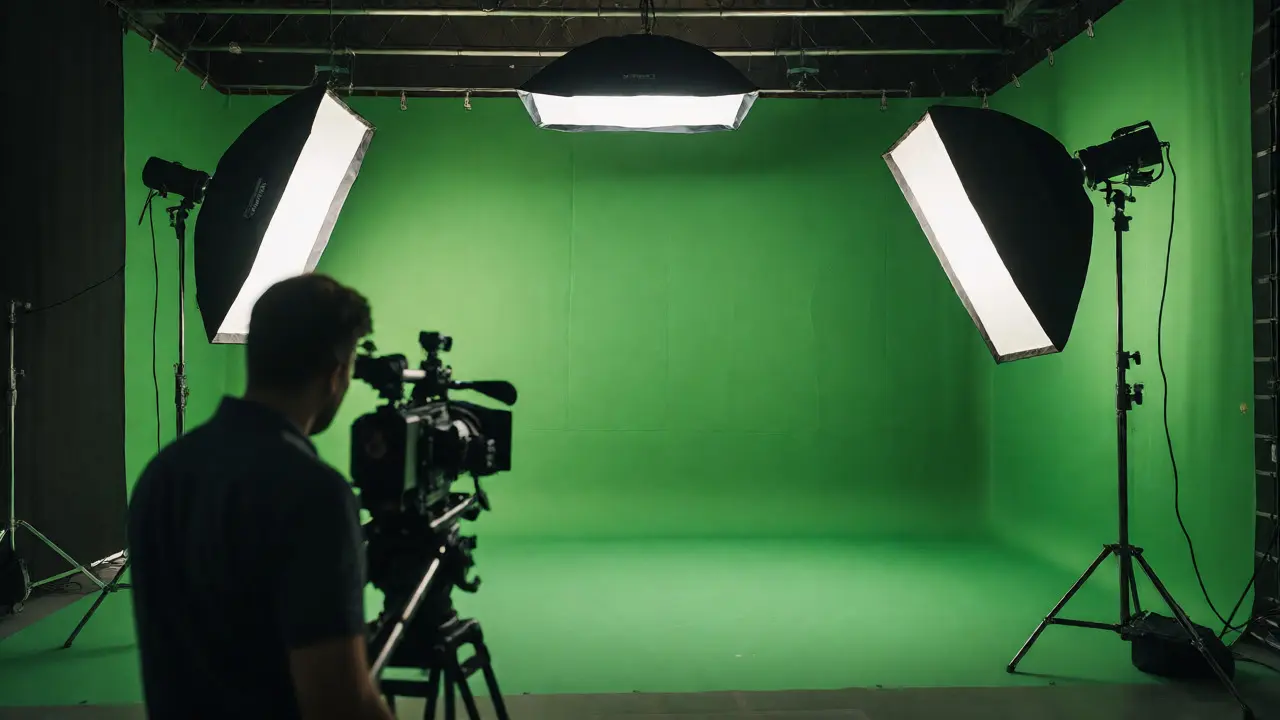
Here is where 90% of beginners fail. They light the subject first, then worry about the background. Wrong order. The background must be perfectly flat before the subject steps into frame. Why? Because chroma keying relies on uniformity. If your green screen has hotspots (bright white spots) or dark patches, the keying software gets confused. It might leave gray ghosts behind or eat through parts of the subject's clothing.
Use two large soft lights aimed at the screen. Place them at 45-degree angles from the center, pointing inward. Check your monitor. Is the green consistent? Use a waveform monitor if you have one; you want the green channel to sit high and steady across the entire frame. No dips, no spikes. Once the screen is boringly perfect, bring in your subject. Now, separate them. Pull your actor at least three feet away from the backdrop. This prevents "spill"-that annoying green reflection bouncing off their skin and clothes. Spill makes people look sickly and ruins the composite later.
Pulling the Key: Software and Settings
Once you have footage, you drop it into your editor. Whether you use Adobe Premiere Pro, DaVinci Resolve, or Final Cut Pro, the logic is the same. You apply a keying effect. In Premiere, it is usually Ultra Key. In Resolve, it is Delta Keyer. These tools ask you to pick a color to remove. Click on the green part of your screen. Instantly, half your image disappears. But the other half looks terrible. Edges are fuzzy. Hair strands vanish. This is where tweaking happens.
Do not just crank the "tolerance" slider until everything looks okay. That destroys detail. Instead, adjust these specific parameters:
- Matte Generation: Adjust the threshold to define what counts as green. You want a clean black-and-white mask. White means opaque (keep), black means transparent (remove). Aim for crisp whites on the subject and solid blacks on the background.
- Edge Feathering: Add a tiny bit of blur to the edges. Real objects interact with light; they don't have razor-sharp boundaries. A slight feather blends the subject into the new background naturally.
- Spill Suppression: This removes the green tint from the subject's skin and clothing. Be careful here. Overdo it, and skin tones turn magenta or purple. Underdo it, and they look radioactive.
A pro tip: If you have fine details like hair or fur, consider using a garbage matte. This is a shape you draw around your subject to tell the software, "Ignore everything outside this box." It saves processing power and stops the keyer from trying to remove green reflections in the corners of the room.
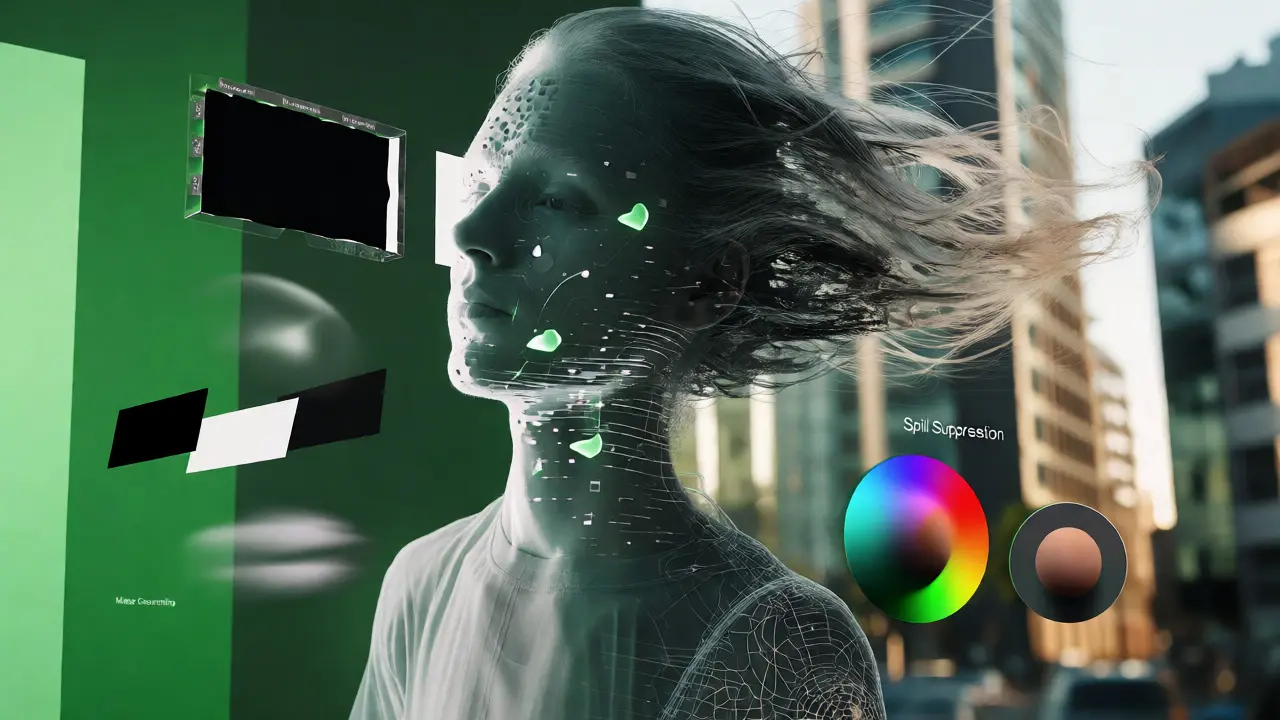
Matching Light and Perspective
You have pulled the key. The subject is cut out. Now you place them over a stock photo of Paris. Does it look real? Probably not. Why? Because the lighting doesn't match. If your studio light came from the left, but the Paris photo shows sunlight coming from the right, your brain rejects the illusion immediately. Humans are incredibly good at detecting fake lighting.
To fix this, analyze your background plate. Where is the sun? What color is the ambient light? Is it cool (blue) or warm (orange)? Then, adjust your foreground layer. Use color correction tools to match the temperature. If the background is sunset orange, warm up your subject. Add a rim light-a subtle glow along the edge of the subject-to mimic the backlight from the background environment. This helps "ground" them in the scene.
| Element | Foreground (Subject) | Background Plate | Action Required |
|---|---|---|---|
| Direction | Studio Light Left | Sun Right | Add fill light to right side of subject |
| Color Temp | 5600K (Daylight) | 3200K (Tungsten/Evening) | Warm up foreground via Color Wheels |
| Intensity | Bright Studio | Dim Twilight | Lower exposure of foreground layer |
Camera Movement and Tracking
Static shots are easy. Moving cameras are hard. If your camera pans left while the background stays still, your subject will slide across the frame unnaturally. To fix this, you need motion tracking. Software like Mocha AE (often included with After Effects) allows you to track points on your subject or the set. You attach your background plate to those tracked points. Now, when the camera moves, the background moves with it, creating parallax-the realistic shift in perspective that makes depth feel real.
If you are shooting handheld, stabilize your footage first. Shaky cam combined with a static background looks chaotic. If you want a dynamic look, plan your camera moves carefully. A slow push-in works well because it mimics how our eyes focus on a subject. Fast whip-pans are difficult to composite unless you have professional match-move data.
Common Pitfalls and How to Avoid Them
One major issue is "edge fringing." This appears as a thin halo around your subject, often colored green or magenta. It happens when the keyer leaves semi-transparent pixels at the boundary. Fix this by shrinking the matte slightly. In many programs, this is called "choke" or "shrink edge." Just a few pixels can make a huge difference.
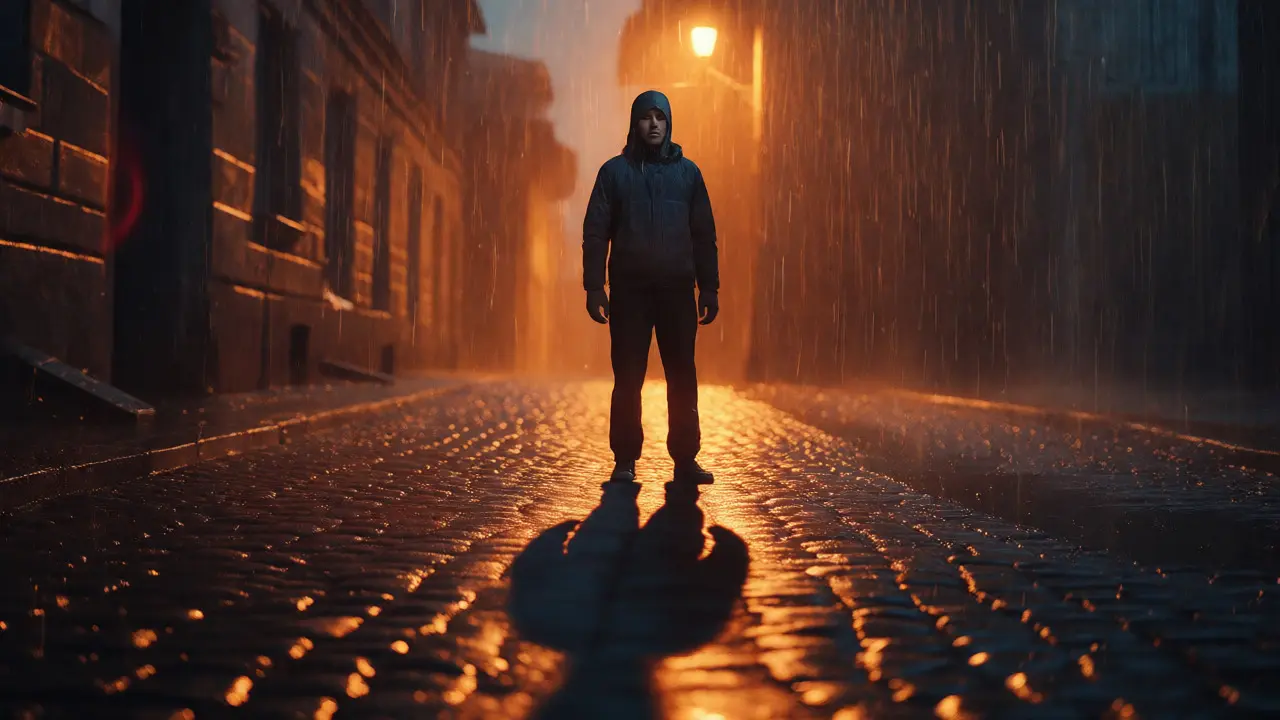
Another trap is ignoring shadows. If your character is standing on a virtual street, they need to cast a shadow. Without it, they look like a sticker pasted onto a photo. Create a duplicate of your subject layer, flip it vertically, blur it heavily, lower the opacity, and place it beneath the subject. Stretch it to match the angle of the light source in the background. This simple trick adds instant weight and realism.
Finally, watch out for reflective surfaces. Glasses, shiny jewelry, and metallic props reflect the green screen. If you see green dots in sunglasses lenses, you have a problem. You can either paint them out manually frame-by-frame (tedious) or use a different backing color for those specific shots. Blue screens work better for subjects wearing green, but green is generally preferred because digital sensors capture more green data than blue, resulting in cleaner keys.
Finalizing the Composite
Your final step is integration. You have matched lights, fixed edges, and added shadows. Now, add atmosphere. Add grain. Yes, grain. Both your live-action footage and your background plate likely have some digital noise or film grain. If one is smooth and the other is noisy, they don't belong together. Apply a uniform grain overlay to the entire composition to glue them together. Add slight vignetting to draw attention to the center. Maybe add a subtle lens flare if the background implies a bright sun.
Compositing is less about technology and more about observation. Study real-world interactions. How does fog obscure distant objects? How does dust float in a beam of light? Incorporate these elements into your digital backgrounds. Use particle systems to add rain, snow, or smoke that interacts with your subject. If it rains, your subject should look wet. Wet hair clumps together. Skin reflects light differently. These micro-details sell the lie.
Why is green used instead of blue for green screens?
Digital camera sensors typically use a Bayer pattern with twice as many green photosites as red or blue ones. This means green channels contain more luminance detail and less noise, resulting in a cleaner key. Additionally, pure green is rarely found in human skin tones or common clothing, making it easier to isolate compared to blue, which can clash with denim or eye colors.
Can I use a blue screen instead of a green screen?
Yes, especially if your subject wears green clothing or accessories. Blue screens are also useful in low-light situations because blue requires less intense lighting than green to achieve proper exposure on the sensor. However, blue keys can sometimes result in noisier mattes if the camera struggles with blue sensitivity.
How far should my subject stand from the green screen?
At least three to five feet. This distance minimizes "color spill," where green light bounces off the screen and reflects onto the subject's hair, shoulders, and skin. Too much spill creates a green halo that is difficult to remove without damaging the subject's natural colors.
What software is best for beginners learning compositing?
DaVinci Resolve offers a free version with powerful Fusion page capabilities, including excellent keying tools like the Delta Keyer. For simpler edits, Adobe Premiere Pro's Ultra Key is intuitive and widely supported. CapCut and other mobile apps now offer basic chroma key features suitable for social media content.
Why does my subject look blurry after keying?
This usually happens if you overused the "feather" or "blur" settings in the keying effect. Try reducing the feather amount. Alternatively, ensure your original footage is sharp and properly focused. If the background plate is low resolution, scaling it up to match the foreground can also introduce blurriness.