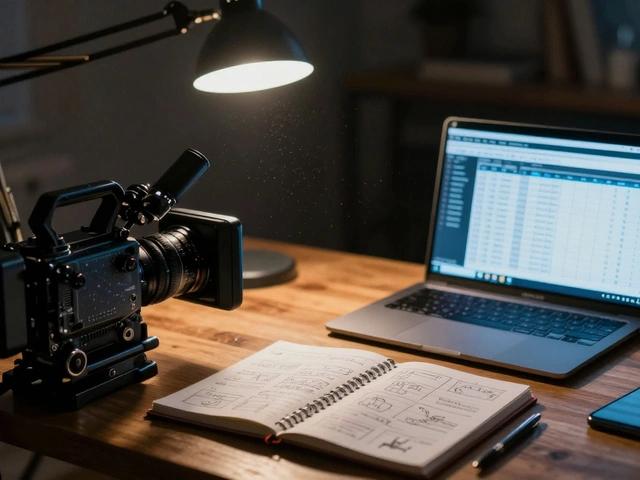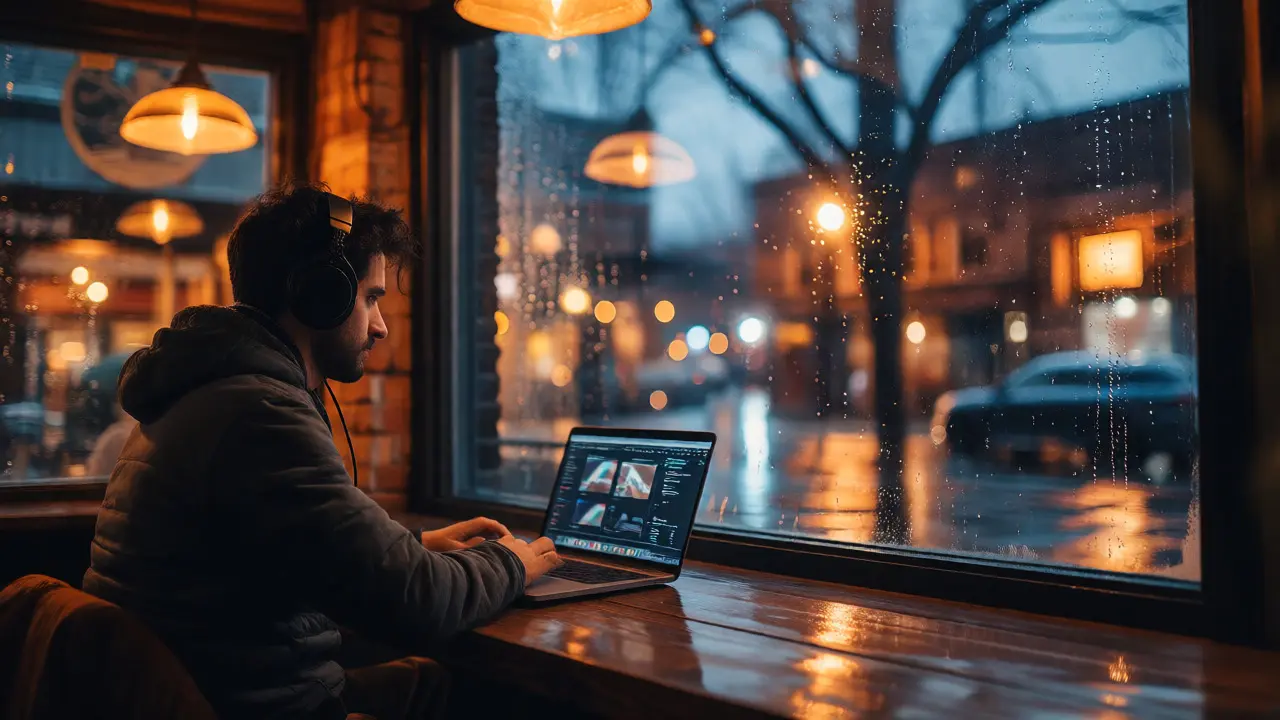
You’re sitting in a coffee shop in Asheville, the rain is tapping against the window, and your director just sent a frantic message from London. The cut needs to change now, but your massive 8K RAW files are sitting on a server in Los Angeles. Ten years ago, this scenario would have meant shipping hard drives via overnight courier or flying halfway across the world. Today? You’re already working. You’ve logged into a browser, spun up a virtual workstation, and you’re scrubbing through timeline clips while your editor in Tokyo renders the final export.
This isn’t science fiction; it’s the new standard for cloud post-production. But let’s be real-moving to the cloud isn’t just about buying a subscription to Adobe Creative Cloud. It’s a fundamental shift in how we handle data, latency, and collaboration. If you try to treat the cloud like a giant external hard drive hanging off your USB port, you’ll fail. You need a workflow designed for distance.
Why Your Old Workflow Breaks in the Cloud
Most traditional editing workflows rely on local storage speed. We’re used to NVMe SSDs delivering read/write speeds of 3,000 to 7,000 MB/s. When you move to the cloud, that direct pipe disappears. Instead, you’re dealing with network bandwidth and latency. Even if you have gigabit fiber at home, the physical distance between your location and the cloud server introduces delay. This is where most beginners get stuck. They try to edit native 4K ProRes files directly from an AWS S3 bucket and wonder why their playback stutters like a bad Wi-Fi connection.
The secret sauce here is decoupling. In a robust remote editing setup, your compute power (the CPU/GPU doing the heavy lifting) lives in the cloud, but your interaction happens locally. You aren’t streaming video frames to your laptop; you’re sending mouse clicks and keyboard commands to a remote machine, which sends back compressed video feedback. This architecture allows you to work on projects that require 64GB of RAM and dual GPUs without owning a $10,000 tower PC.
The Proxy Workflow: Your Best Friend
If there is one rule for successful remote editing, it’s this: never edit native high-resolution media if you can avoid it. Native files are huge. A single hour of 8K RAW footage can eat up terabytes. Transferring that over the internet every time you make a cut is inefficient. Enter proxies.
Proxy media is a lower-resolution, highly compressed version of your original footage created specifically for faster editing performance. By creating half-resolution or quarter-resolution H.264 or DNxHR LB proxies, you reduce file sizes by 90% or more. Your editing software, whether it’s Premiere Pro, DaVinci Resolve, or Final Cut Pro, swaps these lightweight files in automatically during the editing phase.
Here’s the practical hack: Use automated tools to generate these proxies immediately upon ingest. Many cloud platforms now offer "server-side transcode" capabilities. This means the moment your footage hits the cloud storage, the system creates proxies in the background. When you open your project remotely, you’re pulling down tiny proxy files instantly. Only when you’re ready to render the final output do you swap back to the full-quality originals, which stay safely in the cloud archive.

Choosing Your Compute Environment
Not all cloud environments are created equal. You have three main options, and picking the wrong one will drain your budget and your patience.
| Option Type | Best For | Cost Model | Setup Complexity |
|---|---|---|---|
| Virtual Workstations (VDI) | Editors who need full desktop access and specific software licenses | Hourly billing (e.g., AWS EC2, Azure VMs) | High (requires configuration) |
| Browser-Based Editors | Quick reviews, simple cuts, and non-technical clients | Monthly Subscription | Low (plug-and-play) |
| Hybrid Cloud Sync | Teams mixing local and remote editors seamlessly | Storage + Transfer Fees | Medium (requires sync tools) |
For serious narrative films, Virtual Desktop Infrastructure (VDI) is usually the winner. Services like Parsec or specialized providers allow you to run a full instance of Premiere Pro on a cloud server with powerful NVIDIA GPUs. You connect via a low-latency protocol that feels surprisingly local. The key metric to watch here is GPU utilization. If you’re doing color grading in DaVinci Resolve, you need dedicated GPU resources. Don’t skimp on the graphics card tier; a shared vGPU might save money but will frustrate you with laggy scopes and slow noise reduction.
Managing Assets and Version Control
In a local studio, you know exactly where the master audio track is because it’s on the shared drive. In the cloud, things can get messy fast. Who has the latest version of the VFX comp? Is the sound mix locked?
You need a Single Source of Truth (SSOT). This is typically a centralized object storage solution like Amazon S3 or Wasabi, paired with a metadata layer. Tools like Frame.io or Evercast integrate directly with your NLE (Non-Linear Editor) to handle comments and versions. But don’t stop there. Implement strict naming conventions. If everyone names their exports differently, you’ll spend more time searching for files than editing them.
A pro tip: Use cloud-native folder structures that mirror your production hierarchy. Create separate buckets or folders for "Ingest," "Working," "Rendered," and "Archive." Set lifecycle policies to automatically move completed projects to colder, cheaper storage tiers after 90 days. This saves thousands annually on storage costs without sacrificing accessibility for active projects.

Security and Access Control
Filmmakers are paranoid about leaks, and rightly so. When your footage leaves the controlled environment of a local NAS and moves to the public internet, security becomes paramount. Multi-Factor Authentication (MFA) is non-negotiable. Every user accessing the cloud workspace should have MFA enabled, regardless of their role.
Furthermore, look into encryption standards. Ensure your provider offers AES-256 encryption at rest and TLS 1.3 for data in transit. For sensitive pre-release content, consider using private links or VPC (Virtual Private Cloud) peering to keep traffic within the cloud provider’s internal backbone rather than traversing the public internet. This not only boosts security but also improves transfer speeds significantly.
Common Pitfalls to Avoid
I’ve seen too many productions stumble because they underestimated two things: egress fees and license compatibility.
- Egress Fees: Moving data *into* the cloud is often free. Moving it *out* is expensive. If you download your entire 4TB project to your local machine for a final check, you might pay $80-$100 in transfer fees alone. Plan your downloads carefully. Render in the cloud whenever possible.
- License Compatibility: Not all software licenses allow cloud activation. Check with your vendors. Adobe CC works fine, but some specialized plugins or older perpetual licenses might refuse to activate on a virtual machine. Test this before committing your team.
- Audio Latency: While video can be buffered, audio is tricky. High-latency connections can cause lip-sync issues during monitoring. Use hardware-based audio interfaces on the client side if possible, or adjust buffer settings in your DAW integration.
Remote editing isn’t about replacing the craft; it’s about removing the friction of geography. When you set up your remote editing workflow correctly, you gain flexibility. You can hire the best colorist in Berlin, the best sound designer in New York, and the best editor in LA, and have them collaborate in real-time on the same timeline. That level of talent access was impossible five years ago. Now, it’s just a matter of setting up your proxies right and keeping your bandwidth clean.
Do I need a super-fast internet connection for cloud editing?
You need a stable connection more than a blazing fast one. For a good experience, aim for at least 50 Mbps download and 10 Mbps upload with low latency (under 50ms ping to the server). However, because you are working with proxies, the actual bandwidth required during editing is much lower than transferring native files. The critical factor is consistency; packet loss causes stuttering, which ruins the editing rhythm.
Is it safe to store unreleased film footage in the cloud?
Yes, provided you use enterprise-grade security measures. Major providers like AWS, Azure, and Google Cloud comply with stringent security standards (SOC 2, ISO 27001). Always enable Multi-Factor Authentication (MFA), use encrypted buckets, and restrict access via IAM roles. For highly sensitive content, consider using private network connections (Direct Connect or ExpressRoute) to bypass the public internet entirely.
How does cloud rendering compare to local rendering?
Cloud rendering is generally faster for large projects because you can spin up multiple instances simultaneously. Instead of waiting 10 hours on one machine, you can split the job across ten cloud servers and finish in under an hour. However, you must account for the time it takes to upload the project assets and download the final rendered file. For very short clips, local rendering might still be faster due to transfer overhead.
Can I use my existing plugins in a cloud environment?
Most modern plugins work, but there are caveats. Plugins that require hardware dongles or specific local hardware acceleration may struggle in a virtualized environment. Always test your plugin suite on a trial cloud instance before migrating a major project. Also, ensure your plugin licenses permit cloud usage, as some perpetual licenses are tied to a specific physical machine ID.
What is the biggest cost mistake filmmakers make with cloud post?
Ignoring egress fees and leaving instances running 24/7. Data transfer out of the cloud is charged per GB. Additionally, if you leave a high-performance GPU instance running overnight while you sleep, you’re paying for idle compute. Automate shutdown scripts or use spot instances for non-critical tasks to keep costs predictable.